From idea to your first page
For anyone who is brand new and wondering where to begin: the whole way in one piece, from an empty project to a page the world can see. Setting up, your first ticket, looking at the result, going live.
If this is your first time here, this is the order to do things in. You do not have to prepare any of it and you do not have to install anything. A browser is enough.
The whole way in five steps:
- Set up your account
- Create a project
- Write your first ticket
- Look at the result
- Publish
Steps 3 to 5 you then repeat as often as you like. Everything else you do once.
1. Set up your account
After you register, AdenAI takes you through five short questions. It takes a few minutes:
Your dashboard is in German, so each step is named here the way it stands on your screen, with the English meaning after it.
- Handynummer bestätigen (Confirm your phone number). You get a six-digit code and type it in. That keeps out accounts that only want to grab the trial.
- Dein Profil (Your profile). A few details about you: name and language. The language decides which language AdenAI speaks to you in and writes the text in your project in.
- Plan wählen (Choose a plan). Seven days free, after that the plan you pick here takes over. What separates the plans is under What happens after the trial?.
- Domain. If you already have a web address of your own, say so here. Nothing is set up at this point, we just make a note of it. Überspringen (Skip) is perfectly fine.
- GitHub verbinden (Connect GitHub). Only interesting to you if you know what it is. Without GitHub your code sits safely with us and you can get at it at any time. More under Getting your project into GitHub.
If the code for your phone number does not arrive, write to us in support. We will unlock you by hand.
2. Create a project
A project is one website or application. Everything belonging to it lives inside: tickets, uploaded images, the preview, later the domain.
On the dashboard you create a new project. The button Neues Projekt (New project) is at the top right, level with the "Dashboard" heading. You need exactly one thing for it: a name. The description below it is optional and helps you later, once there are several projects.
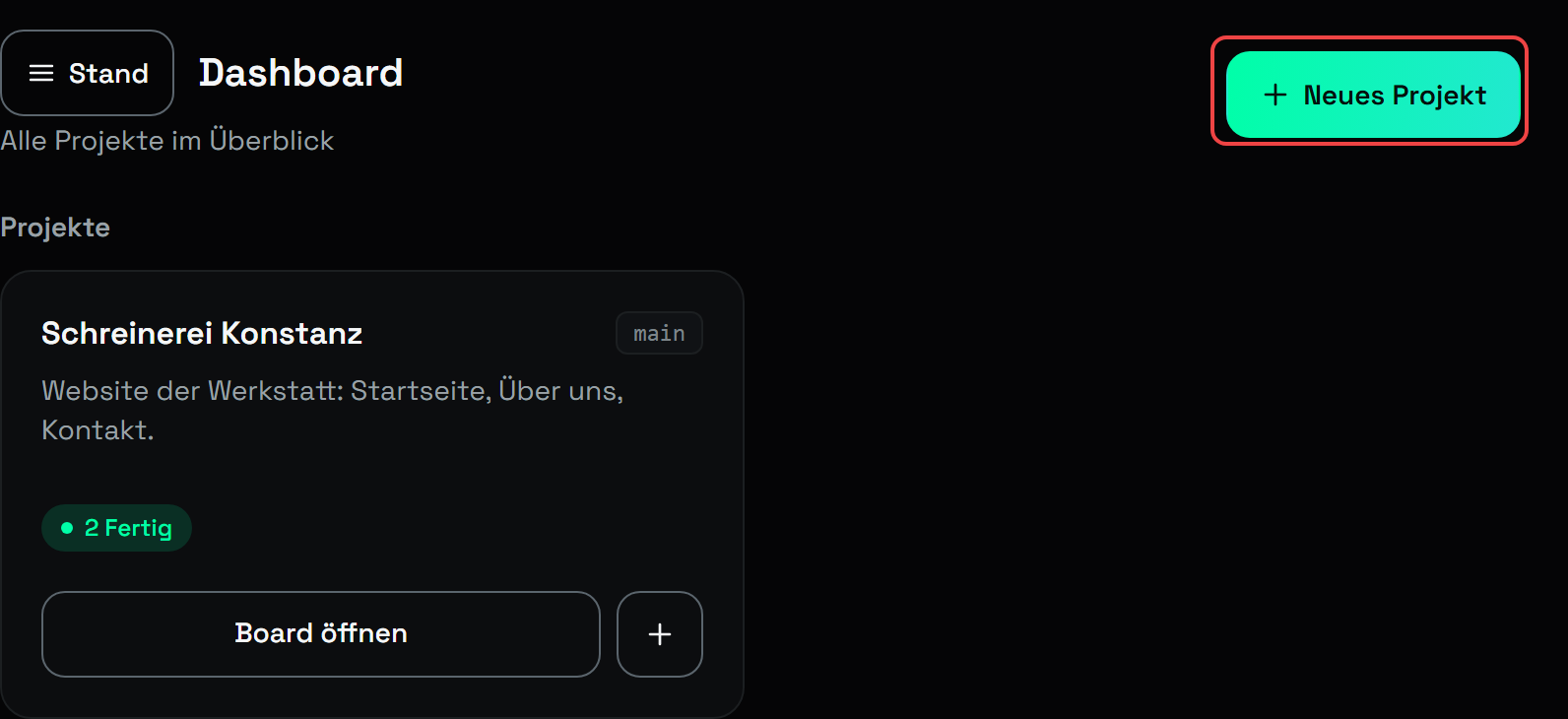
After you create it, the project is empty. Nothing is standing there, nothing is running, and that is right: building begins with the first ticket.
How many projects you may have
Trial one, Dev three, Pro ten, Team thirty. If that is not enough, you can book an extra project under Add-ons, as Projekt-Platz kaufen (Buy a project slot).
3. Your first ticket
A ticket is your brief to AdenAI. You write into it what should come into being, in plain language. No technical term is needed, and none will help you here.
For your very first ticket it pays to describe the whole thing, not just the beginning: what it is about, who will visit the page, which subpages you need, how it should feel. AdenAI then picks a suitable foundation and builds on it. An example:
Website for my joinery in Konstanz. Home page with one image, a short text about the workshop and three services (bespoke furniture, interior fitting, repairs). Plus an "About us" page and a "Contact" page with a form (name, email, message). Calm and craftsmanlike, muted colours, wood tones. No prices on the site.
That is not a perfect ticket, but it makes one decision per line. That is the whole point. How to do the same for every ticket after that is under How to write a good ticket and, at length and with examples, under Describing what you have in mind.
On the model: if your plan gives you more than one, the stronger one is worth the money on a project's first ticket. This is where the foundation is laid that everything else builds on. Which models you can choose from and what they cost is under Credits, and at length under Which model works on your ticket.
4. Watching and looking
As soon as AdenAI takes your ticket on, you see the progress inside the ticket: which step is running and, every few minutes, one sentence about what is being worked on. At the top there is also a time estimate, calculated from the last real runs rather than guessed.
You do not have to sit in front of it. The ticket keeps running even if you close the tab.
When it is done, there is a link to your work, Arbeitsstand ansehen (View your work). That is your site as it stands right now. It is not public yet: only you, your team and anyone who got a link from you can open it.
If something is not right, write it as a comment on the same ticket instead of opening a new one. AdenAI reads the thread and then knows what you are referring to.
5. Publish
Only when you press Veröffentlichen (Publish) does your work go out into the world. That costs no credits and usually takes under a minute.
Why that is a step of its own, and how you roll a publish back, is under Your draft and the published version.
To make your site reachable under your own web address, you connect your domain once: Connecting your own domain.
What comes after that
From here on it is all the same loop: write a ticket, look at it, publish. A few things that make life easier once you are in the flow:
- Upload your material. Logo, photos, a price list as a PDF. After that you simply call the file by name in the ticket. See Sending images and files along.
- Set down once how it should look. Colours, mood, font. AdenAI carries that into every ticket from then on, and you never have to repeat it. See Describing what you have in mind.
- Bring somebody in. Co-workers or clients, with the right role. See Inviting your team and roles.
If you get stuck somewhere
At the top of the header there is a question mark, to the right of your balance and the icons for team, support and docs. It starts a short tour that explains exactly the page you are on, and you can call it up again whenever you like. On your first visit it opens by itself.

If that does not help, write to us in support. AdenAI answers there first, out of these docs, usually straight away. After that a human looks at the same question.
Stand: 2026-08-30
Alle Artikel